Settings
Owner’s Settings
The first page under Manage Hackathon. It shows:
What participants can do: the checkboxes that steer the hackathon
Where the hackathon is: the current and next phase, see Manage Timeline
Tracks: optional, see Manage Tracks
Manage: a tile for every other page under Manage Hackathon
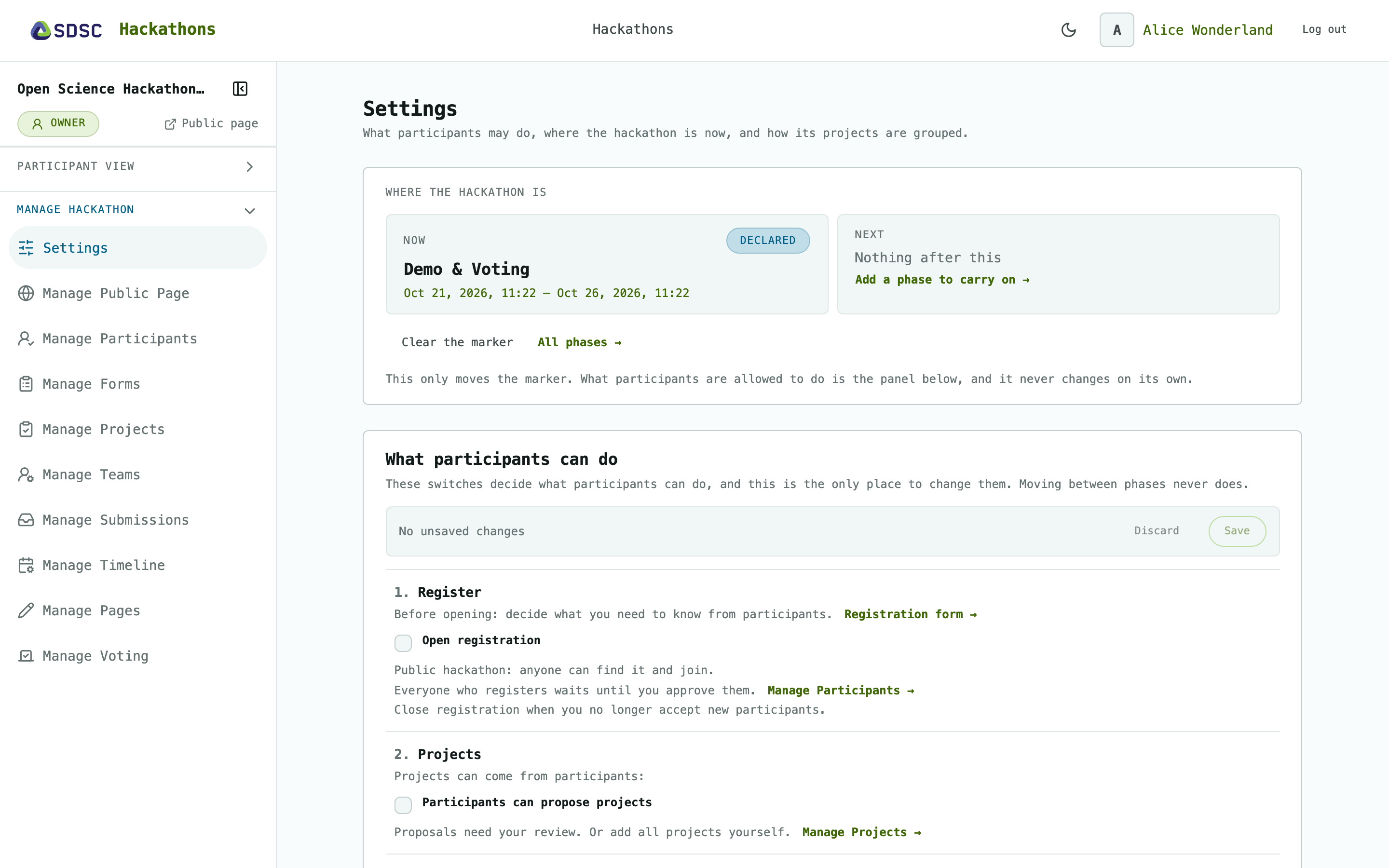
What participants can do
Important
These checkboxes steer the hackathon: they decide what participants can see and do. When a hackathon is created they are all off, so participants can do nothing yet, not even register. Use and change them with care.
The checkboxes are grouped into steps, in the order a hackathon usually runs. Some steps are optional, and some only point you to the page where you prepare the next one. Moving the hackathon to another phase never changes them.
Step |
Checkbox |
When it is on, participants can … |
Good to know |
|---|---|---|---|
1. Register |
Open registration |
join the hackathon. On a public hackathon they wait until you approve them. On a private one, a valid invitation lets them straight in. |
While it is off, invitation links don’t work either. Nobody can join once the end date has passed. See Manage Forms, Invitations and Manage Participants. |
2. Projects |
Participants can propose projects |
propose projects for you to review. |
Optional: leave it off if you add all projects yourself. See Manage Projects and Projects. |
3. Project preferences |
Participants can voice preferences |
mark the projects they would like to work on. |
Turning it off freezes the preferences as they are. See Projects. |
4. Team assignments |
— |
— |
You form the teams. Participants don’t see them until the next step. See Manage Teams. |
5. Hacking starts |
Participants can see teams |
see the teams and who is on them. |
While it is off, participants can’t see even their own team. See Teams. |
Participants can submit for their team |
hand in work for their team’s project. |
Only people on a team can submit. Turning it off stops new submissions, but a team can still finalize a draft it has started. See Manage Submissions and Submissions. |
|
6. Set up voting |
— |
— |
Create the vote categories and decide who votes in them. See Manage Voting. |
7. Voting starts |
Participants can vote |
vote, and see every team’s submissions instead of only their own team’s. |
This opens all vote categories at once, and nobody can vote for their own team. Switch it off to close voting before you make the results final. See Manage Voting and Voting. |
8. Publish results |
Publish results |
see the vote results. |
Make the results final on Manage Voting first. This checkbox then shows them. You always see the results yourself. See Results. |